 01
01Structured transcripts with interview guides
Add your interview guide once, and every recording gets its section and question headings in the right places.
Learn more
Interview recordings now come back structured: your guide's headings placed where each question was asked, ready to download as a formatted Word document.
Feature highlights
01Add your interview guide once, and every recording gets its section and question headings in the right places.
Learn more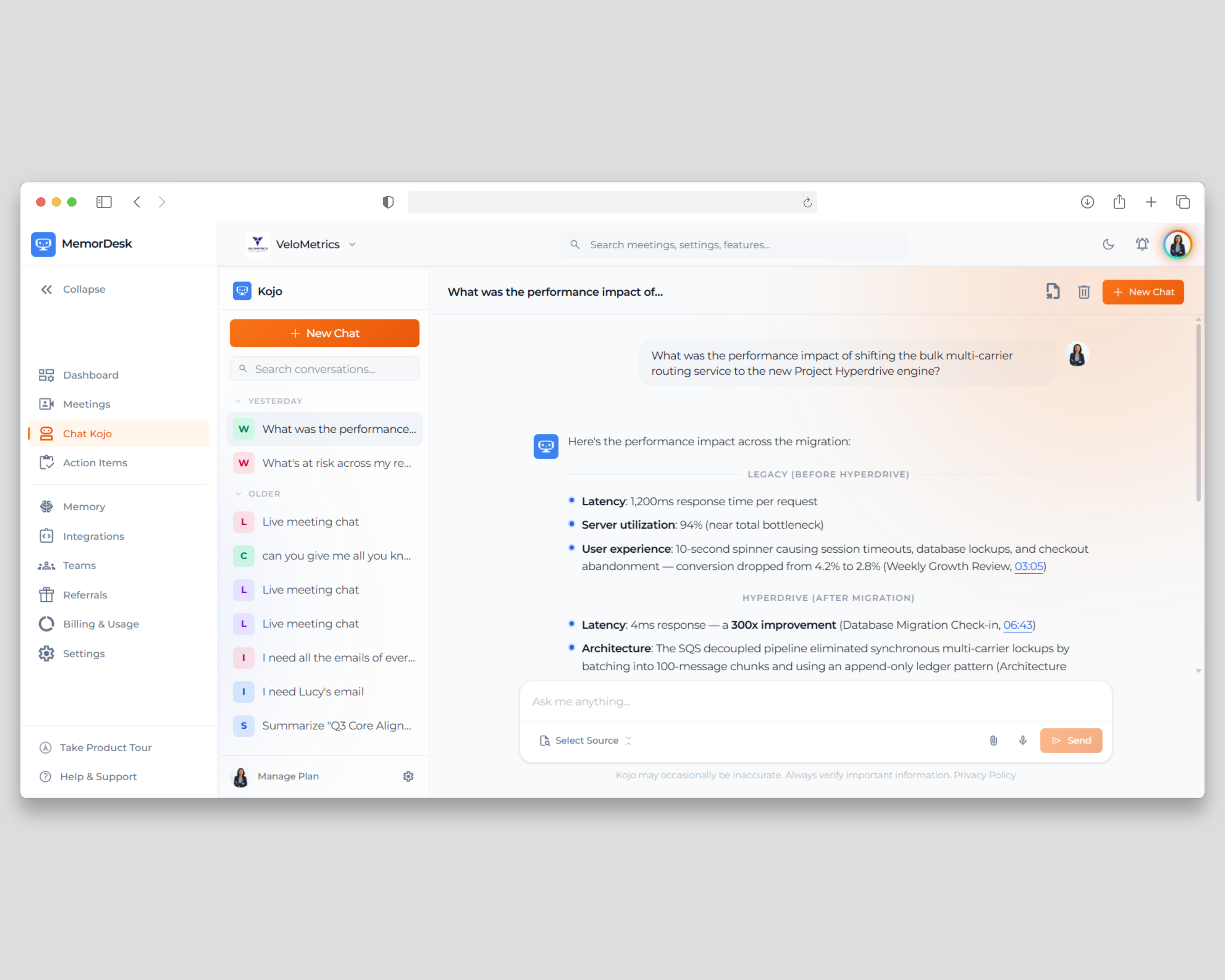 02
02Ask questions about your meetings, documents and tasks without leaving Slack.
Learn more03Give stakeholders read and ask access only, with group meetings kept private to the group.
Learn moreConnect Claude, Cursor or Warp to your meetings, and let Kojo search your Notion pages.
Learn more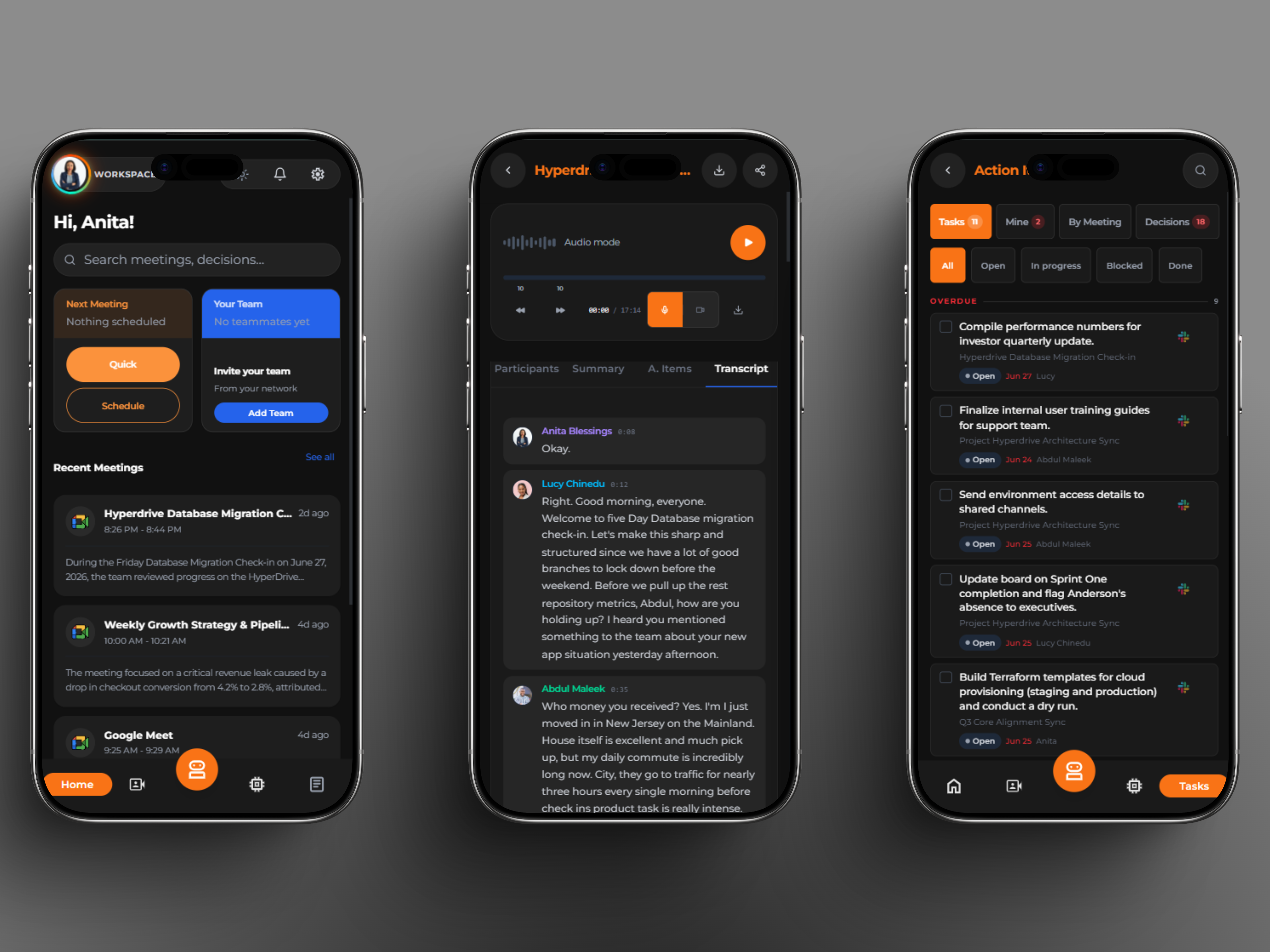 05
05Share one secure link and let teammates join your workspace in a click.
Learn more06Paste an interview guide or upload it as a Word, PDF or text file, and MemorDesk reads it into an outline of sections and numbered questions, including sections that are only for certain respondents, such as a facility manager or a veterinary doctor. You check and correct the outline once, add the project name, interviewer and transcriber for downloads, and reuse the guide on every recording. Reading a guide uses 2 credits, once.
Find it in: Knowledge, Documents tab, then Interview guides
Learn moreOn a recording's transcript, choose Structure with a guide. MemorDesk finds where each of the guide's questions was asked, even when the interviewer reworded them or asked them out of order, and places the section and question headings there. The words of the transcript are never changed. Speakers show as I1, I2 for interviewers and R1, R2 for respondents, uncertain matches are marked Check, and you can change, remove or add any heading by hand at no cost. The card lists the guide's questions that were not found. It costs 3 credits plus 1 for every 10 minutes of recording, the next two runs on the same recording are free, and credits are returned if a run fails.
Find it in: A recording's transcript page, Interview guide card under Speakers
Learn moreDownload a structured transcript as a professionally formatted Word document: a details table (project, audio file, respondent, interviewer, transcriber, date, duration, language and guide), the guide's sections and questions as real Word headings so the navigation pane works, interviewers in red and each respondent in a colour of their own, page numbers and the interview's end time.
Find it in: Transcript page, Download, then Structured Word document
Learn moreMP4 files can now be uploaded for transcription, using only their sound. A recording saved with the wrong extension, such as an M4A named .mp3 or a WhatsApp voice note named .wav, is now accepted as its real format instead of being refused.
Find it in: Knowledge, Upload
Learn moreMessage the MemorDesk app in Slack, or use the ask command, and Kojo answers from the meetings, documents and tasks you can already see in MemorDesk. Link your account once and the answers respect the same access rules as the app.
Find it in: Integrations, then Slack
Learn moreViewers in a Team workspace can read and ask Kojo, and nothing else, enforced the same way everywhere in the app. Restricted group meetings stay hidden from people outside the group, and people who are not members no longer see groups at all.
Find it in: Teams
Learn moreWhen a recorder is demoted or leaves, nothing is deleted. Their private meetings appear for owners and admins under Unassigned meetings, so knowledge never leaves with a person. Instant transfer to personal space is now owner only and off by default.
Find it in: Teams, then Unassigned meetings
Learn moreOwners and admins can create an invite link for a workspace and share it anywhere. The link is also offered right inside the invite dialog, so you no longer need to type every email address.
Find it in: Teams, then Invite
Learn moreConnect Claude, Cursor, Warp or another MCP compatible tool to your meetings and action items with read only access, signing in through a standard OAuth flow. MCP now lives inside Integrations, next to your other connections.
Find it in: Integrations, then MCP
Learn moreConnect Notion and Kojo can search and read the pages you share, read only, alongside your meetings. Available on the Pro plan and above.
Find it in: Integrations, then Notion
Learn moreAdd a recording you already have and it is transcribed and added to your knowledge, so Kojo can answer questions about it like any other meeting.
Find it in: Knowledge, then Documents
Sign in with a bearer token and read your meetings through a stable, versioned API, with an OpenAPI description to build against.
Find it in: Docs, then API
With Cite Sources on, Kojo places small clickable chips beside supported statements. Meeting chips carry the meeting platform mark and document chips carry the file icon. Select a chip to jump straight to the source.
Find it in: Kojo
Learn moreDrop a screenshot or a file into a Kojo conversation and ask about it in the same breath. Prompts you send while a file is still uploading are queued, and expired attachments are cleaned up automatically.
Find it in: Kojo
Learn moreType @ in the Kojo chat, search or browse your meetings and documents in a two tab list, and pick what you want, then ask your question. One search box covers both. This replaces the Select Source button. Kojo reads everything you mention in full before it answers, and only ever reads what you are allowed to see.
Find it in: Kojo, then the @ button in the message box
Learn moreSelect an attachment card in Kojo to preview it in the chat. Images and PDFs open in place, while documents and spreadsheets show a secure readable-text preview. This works on desktop and mobile without sending your private file to an external document viewer.
Find it in: Kojo
Learn moreEvery image and file you send to Kojo now shows as a thumbnail card, on desktop and mobile. Choose Save to memory on a card to keep it in your workspace Documents for good, including images, which are indexed by what they show and any text in them. Kojo also reads scanned PDFs page by page.
Find it in: Kojo
Learn moreFiles you upload or save to memory now go into the workspace you are working in immediately, and the upload dialog starts on that workspace. The 24 hour wait before teammates could see a team upload is gone.
Find it in: Knowledge, then Documents
Learn moreKojo, search and your meeting lists now stay inside the workspace you have selected, so personal and team knowledge never mix in an answer.
Find it in: Workspace switcher
Learn moreIn a Free team workspace, meetings older than the seven day history window now show as locked on desktop and mobile, with a clear route to upgrade, instead of quietly disappearing.
Find it in: Meetings and Knowledge
Learn moreChoose whether guests receive pre meeting emails, the post meeting summary email and the in call recording disclosure. Your own summary email always stays on, opt outs are honoured for added participants too, and every change to these controls is audited.
Find it in: Settings, then Live Meetings
Learn moreLive meeting events now travel through a dedicated realtime service, and messages typed in the meeting chat appear in the live transcript in order, so links and notes shared in chat are never lost.
Find it in: Live transcript
The assistant uses participant events to tell people from bots, so it leaves a call on time when only other note takers remain.
Find it in: Meetings
Learn moreAfter you sign up or request a password reset, shortcuts take you straight to your email app to find the message.
Find it in: Sign up and password reset
Eligible workspaces can start a 2 month trial of the Team plan from the Team card. It tracks separately from the Pro trial, so using one never blocks the other.
Find it in: Plans and Billing
Learn moreAfter you confirm your two factor code, choose to trust the device so routine sign ins stay quick while new devices still get a full check.
Find it in: Sign in
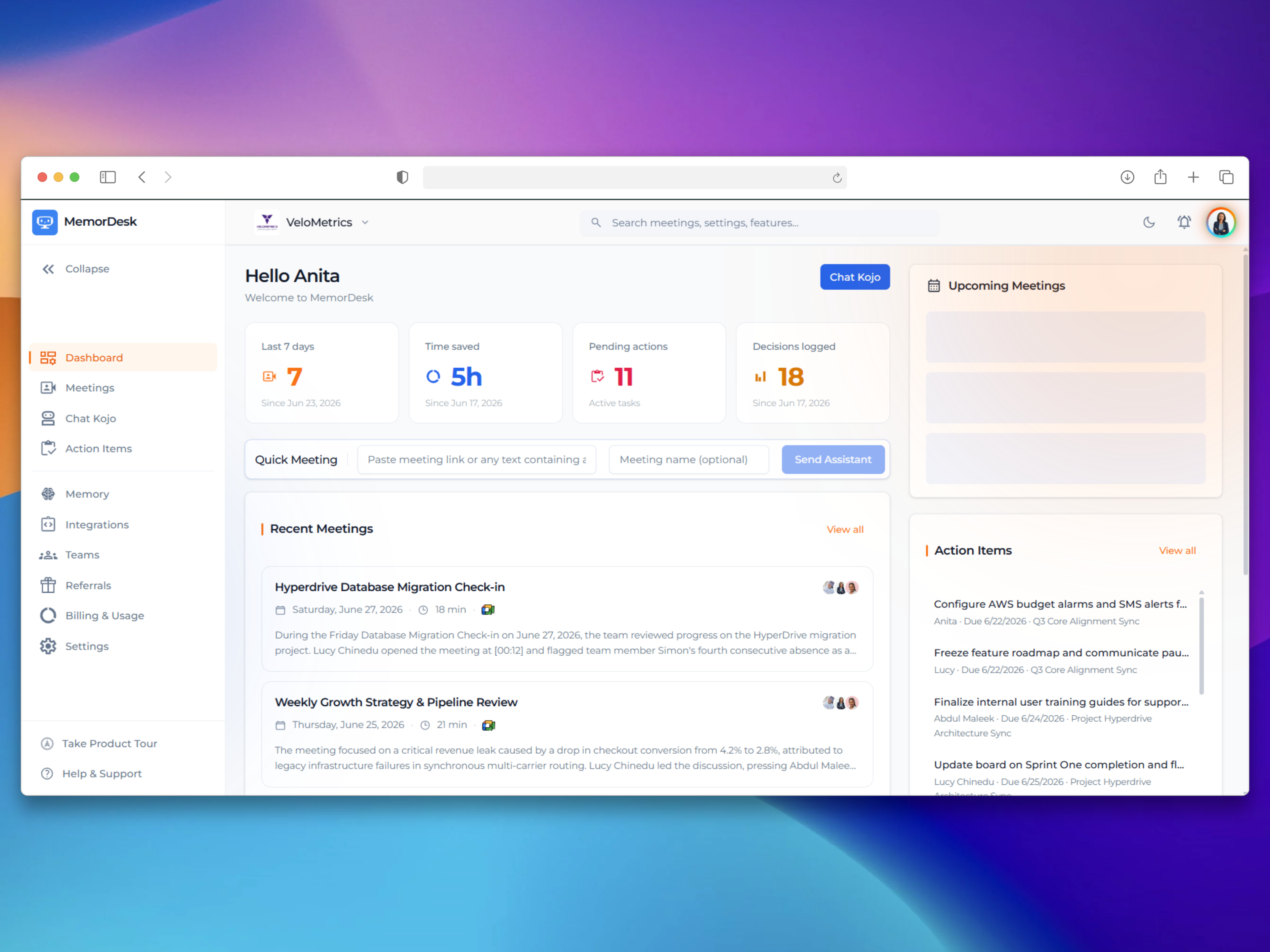
Each meeting now shows who actually attended and when they joined and left, alongside their talk time.
Find it in: Meeting page
Learn moreEvery invoice you have paid is listed in the Billing tab, ready to review or download.
Find it in: Plans and Billing
Learn moreWhat's New highlights each release at a high level and explains why it matters. The documentation covers every setting and step in detail, and each update here links to the matching guide.
In most cases, yes. Once a feature is released it is available in your workspace immediately. A few features, such as workspace invite links and Slack connections, need an owner or admin to switch them on.
Yes. MemorDesk ships a desktop app and a mobile app on one account, and new features are built for both. Where a feature lives can differ, so each update names the page to open.
Bookmark this page, or check the announcements inside the app. You can also ask Kojo what changed recently and it will point you to the right place.